Introduction
Canva is an easy-to-use online design tool. You can use it to create social media posts, presentations, posters, logos, certificates, and many other designs without any design experience. Canva gives you ready-made templates, images, fonts, and simple editing tools, so you can create and share your designs quickly and easily.
What Can You Create on Canva?
With Canva, you can create:
- Social Media Posts
- Presentations
- Posters
- Flyers
- Logos
- Business Cards
- Certificates
- Resumes
- Invitations
- YouTube Thumbnails
Step-by-Step Guide to Create a Design on Canva
Step 1: Open Canva
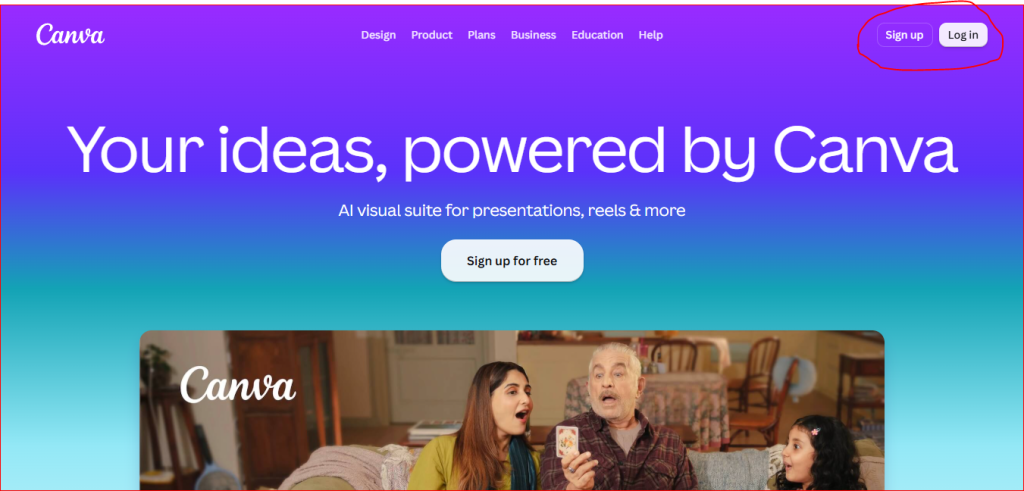
First, open the Canva website and sign in to your account.
If you don’t have an account, click Sign Up and create one for free. You can sign up using your Google account, Facebook account, or email address.
Step 2: Click on “Create a Design”
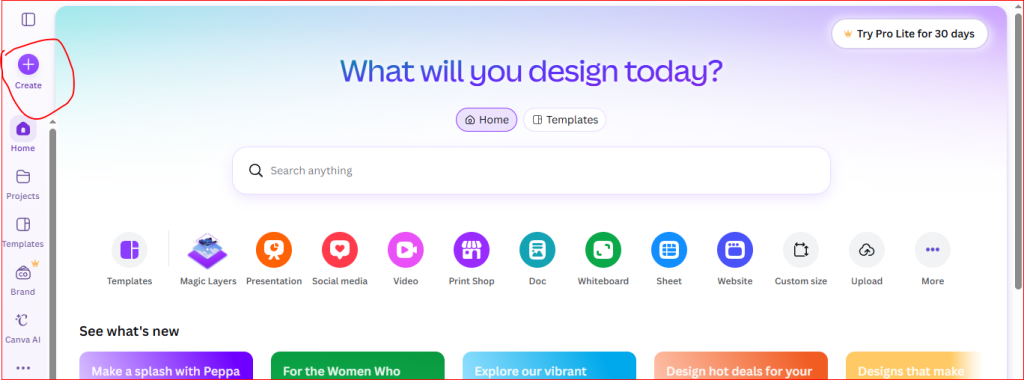
After you log in, click the Create a Design button on the homepage. Now choose the type of design you want to create, such as a Presentation, Instagram Post, Poster, Flyer, or any other design.
Step 3: Choose a Design Type
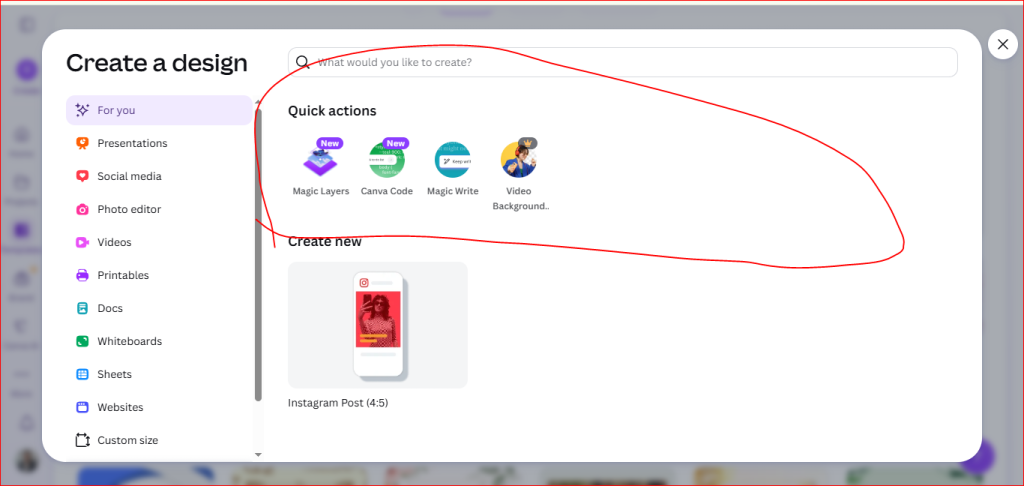
Click the type of design you want to create. For example, you can choose an Instagram Post, Presentation, Social Media Post, Poster, Flyer, or any other design. If you want, you can also use a ready-made template or start with a Blank Design.
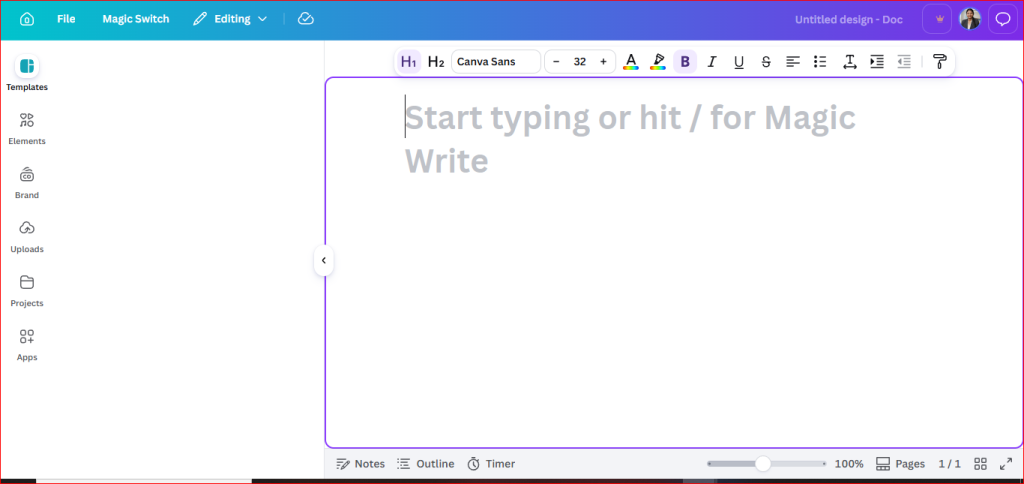
Step 4: Start Writing
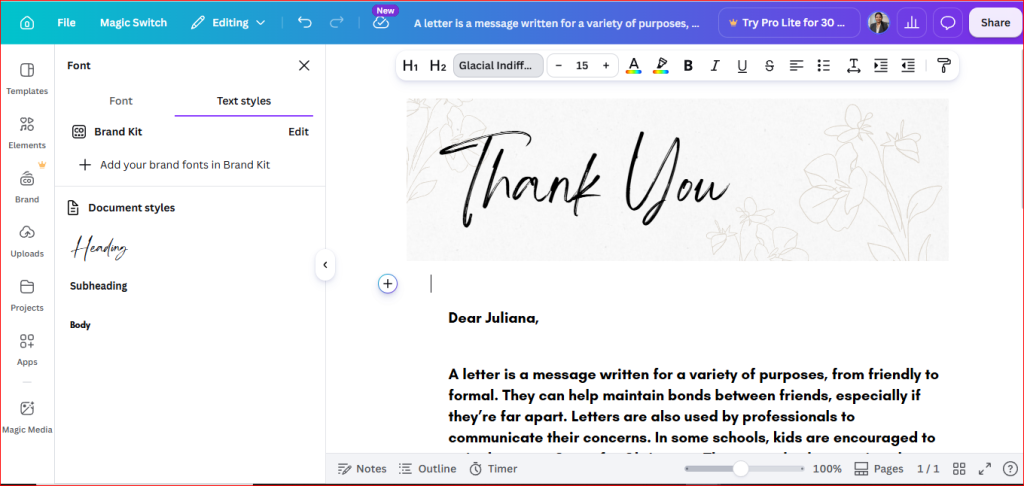
Click on the page and start typing your content. You can change the font, size, color, and style from the top menu. You can also add images, icons, shapes, and other elements to make your design look better.
Step 5: Customize Your Design
Edit the template by replacing the sample content with your own.
You can change:
- Text
- Fonts
- Colors
- Images
- Icons
- Shapes
- Backgrounds
- Layout
Simply drag and drop elements onto the canvas.
Step 5: publish the post
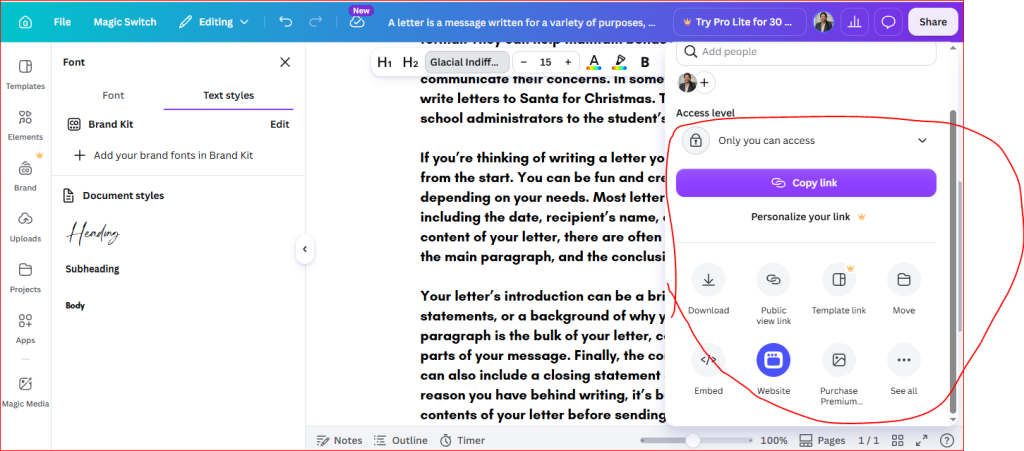
After completing your post-editing, you may publish your post.
- Click on “share.”
- Choose anyone with the link.
- choose public link